
Why Your Saved RDP Shortcut Says 'Unknown Publisher' After April 2026 (and How to Fix It)

IT Hands Free — for clients who VPN in and double-click a saved Remote Desktop shortcut
If you work from home or from a second site and connect to the office PC with a saved .rdp file on the desktop, you have probably seen this since spring:
Caution: Unknown remote connection
Publisher: Unknown publisher
Clipboard, drives, and printers are unchecked. There is no lasting “Don’t ask me again” on unsigned files. It looks like something is broken. It is not. Microsoft changed how Windows treats saved RDP files.
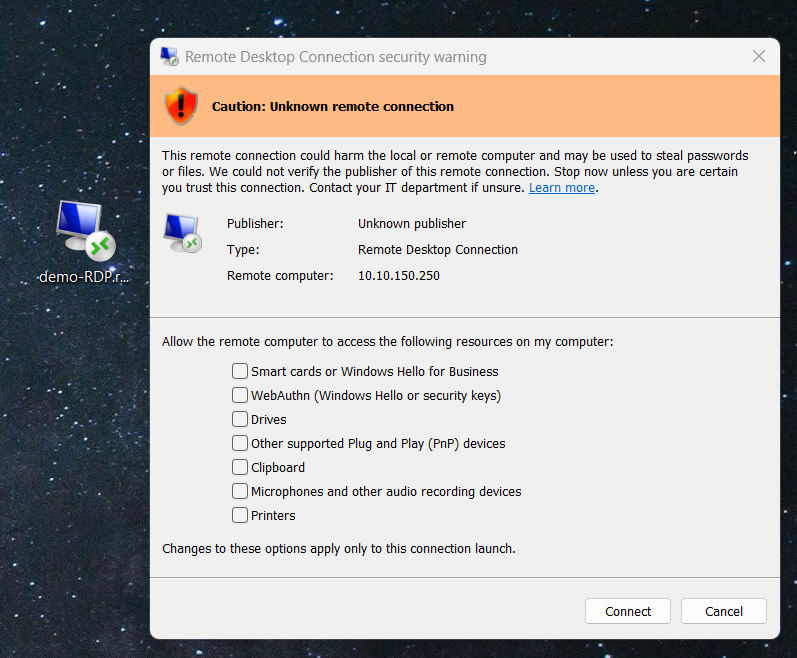
.rdp file — the caution banner, an Unknown publisher, and every local resource switched off by default.What started this
In the April 2026 Windows security updates (around April 14, including updates such as KB5083769 on Windows 11), Microsoft added anti-phishing protection to Remote Desktop Connection (mstsc.exe). The change is tracked as CVE-2026-26151.
Attackers had been emailing or posting .rdp files that look like a normal work shortcut. Those files can ask Windows to share your clipboard, local drives, printers, and other devices with the remote session. If you click through, you can hand a stranger a path to files and passwords.
So Microsoft made three changes that only apply when you open an .rdp file:
- A security dialog appears before the session starts.
- Every local-resource option is off by default. You must turn on only what you need.
- If the file is not digitally signed, Windows cannot prove who created it or that it was not edited. The publisher is Unknown publisher, and the caution banner stays.
Typing a computer name directly into Remote Desktop Connection is unchanged. The new dialog is about files, not about RDP itself or your VPN.
Saving a shortcut from mstsc does not sign the file. It only writes settings into a text file. Windows still cannot verify a publisher.
Who this hits
Anyone who:
- Connects over VPN, then double-clicks a saved connector
- Keeps one shortcut per server or workstation
- Relies on saved display, gateway, and resource settings
That is a large share of remote staff and MSPs. Re-entering hostnames and options for every system is not practical.
Option 1: Digitally sign the saved .rdp files (best for many shortcuts)
This is the method Microsoft intends. A signed file can show a real publisher name. A signed-but-not-yet-trusted file shows a calmer “Verify the publisher of this remote connection” prompt with your publisher named, rather than the red “Unknown publisher” banner. Once that certificate is trusted on the PC you connect from, the warning goes away entirely and the file simply carries your named, rememberable publisher.
High level:
- Create or obtain a code-signing certificate (a self-signed cert is enough if you only connect from machines you control).
- Trust that certificate on the client PC (Trusted Root and Trusted Publishers).
- Sign each
.rdpwith the built-in toolrdpsign.exe. - Optionally add the certificate thumbprint to the “trusted RDP publishers” policy so Windows treats those files as yours.
After that, keep using the same desktop shortcuts. If you edit a file later (resolution, drives, gateway), sign it again. An edited file is unsigned again.
This is the right long-term approach when one person or one IT team maintains a folder of connectors and uses them from a small set of PCs.
Option 2: Windows App (simpler for many people, with a catch)
A simpler path for staff who do not want to deal with certificates:
- Install Windows App from the Microsoft Store (Microsoft’s current remote-access client; it replaced the old Store Remote Desktop app).
- Add each remote PC as a saved connection.
- Set display and resource preferences in the app and save them.
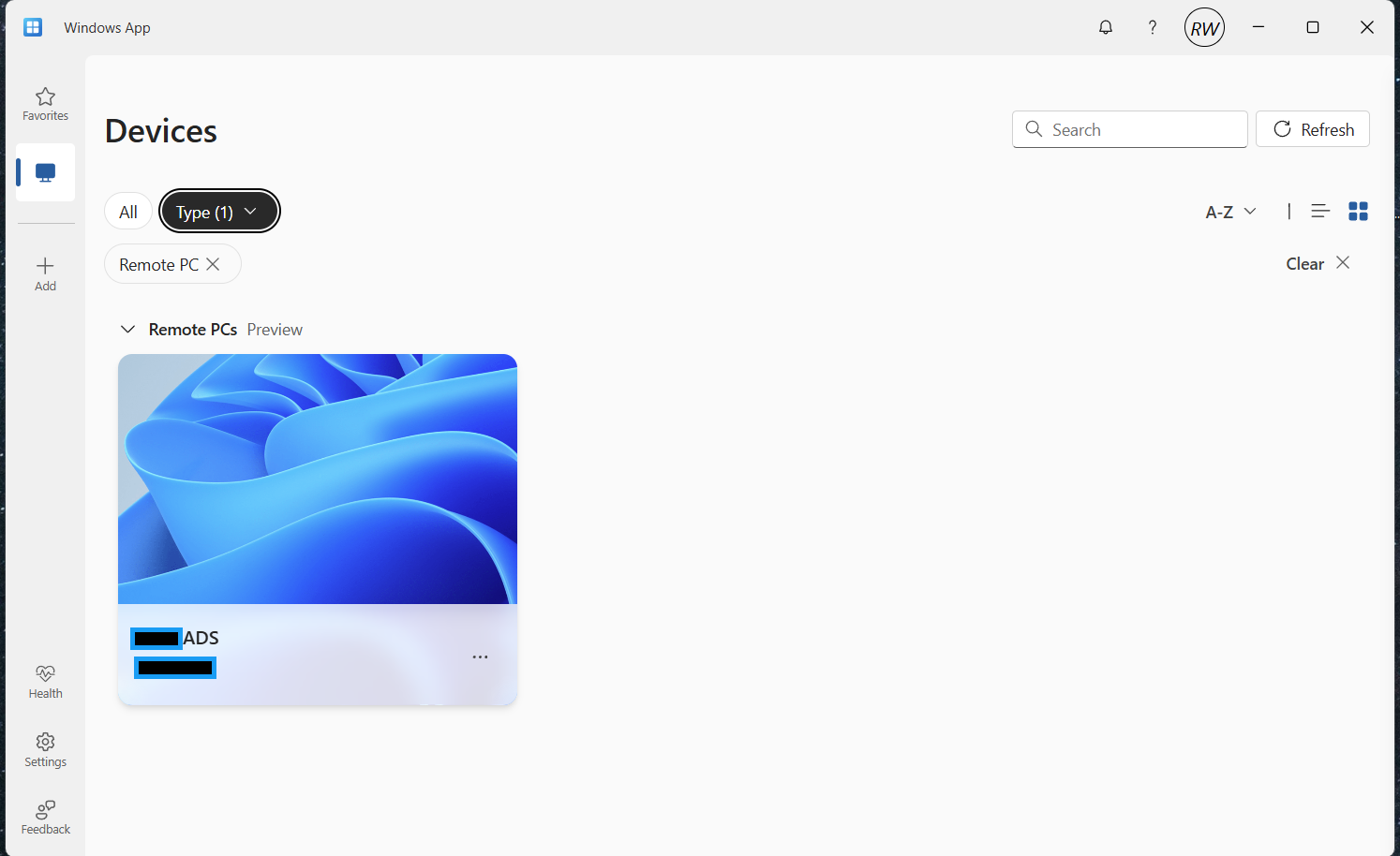
.rdp file involved.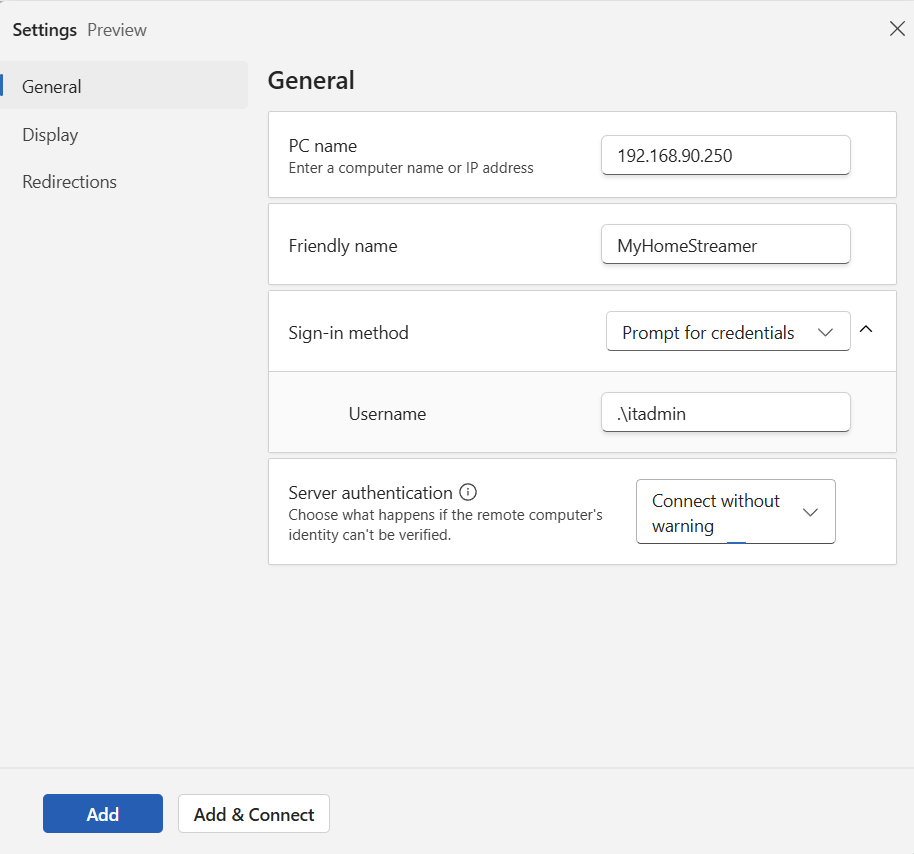
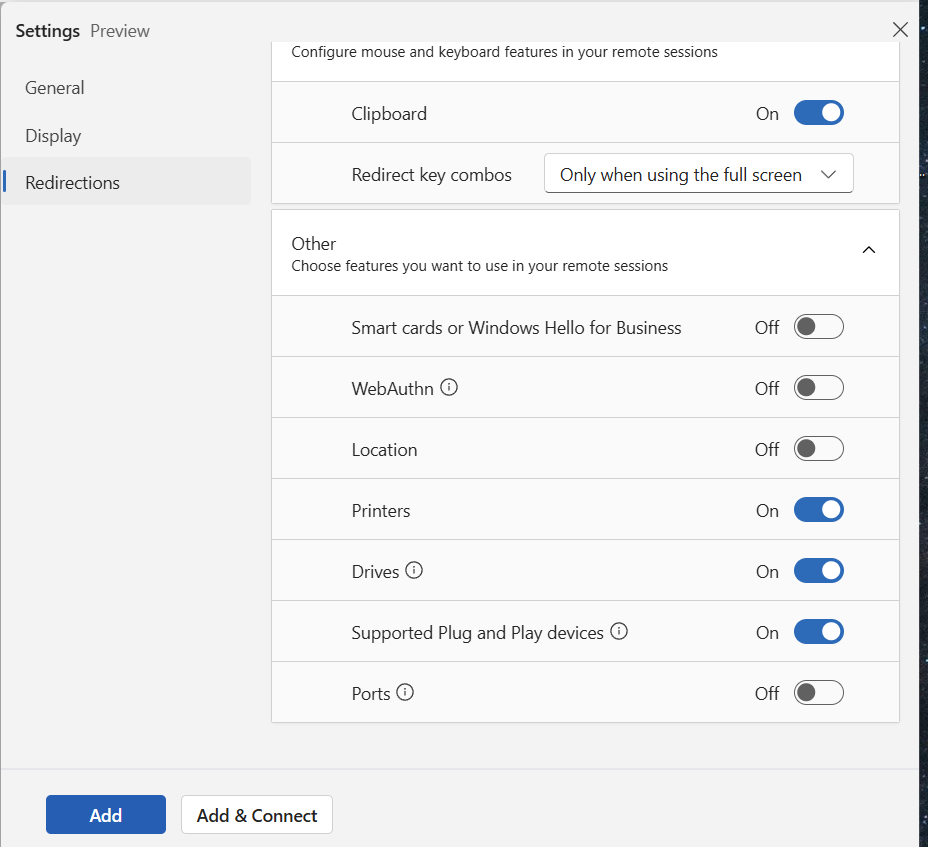
.rdp warning now makes you tick every time, set once here instead.You are not double-clicking an unsigned .rdp file, so you avoid that specific publisher dialog.
Downside: this is per machine.
Connections and preferences live in that app on that PC. A new laptop, a home PC, and an office PC each need the same connections added again unless you rebuild them yourself. There is no single signed .rdp file you can copy to a USB key or drop on another desktop.
Windows App is a good fit for a user who always uses the same two devices. It is a poor fit if you jump between machines and expect the same shortcut pack everywhere.
mstsc is still supported for direct PC-to-PC connections. Windows App does not replace that for every scenario, but it is a clean way to store named connections without living in .rdp files.
What we recommend
| Situation | Practical choice |
|---|---|
| One or two PCs, few remotes, non-technical user | Windows App, add and save each connection |
| Many remotes, same shortcuts on several PCs, IT-managed | Sign the .rdp files and trust the publisher on those PCs |
| Emergency / one-off | VPN, open mstsc, type the name — no file warning |
Do not treat “click through Unknown publisher every time” as the plan. That warning exists because an unsigned file can be swapped or emailed by someone else. Your own saved file is usually fine; Windows just cannot tell the difference.
What clients should do this week
- Confirm the warning only appears when opening a saved
.rdp, not when typing the host inmstsc. - Decide: signed files (portable shortcuts) or Windows App (per-PC saved list).
- If you use signed files, do not email unsigned
.rdpattachments as “the official connector.” - After you sign a file, treat it as locked. Any setting change needs a re-sign.
If you are an IT Hands Free client and this started after April updates, we can sign your connector set or walk you through Windows App on the PCs you actually use. The goal is the same as before the update: VPN on, click the right system, get to work — without a caution banner on every connection.